Appearance
User Guide
This guide covers the EleAgent web interface — how to start sessions, interact with the AI agent, and use the available features.
Starting a Session
Navigate to the web UI in your browser. After logging in, you'll see the sidebar with the project workspace.
Project and Session Picker
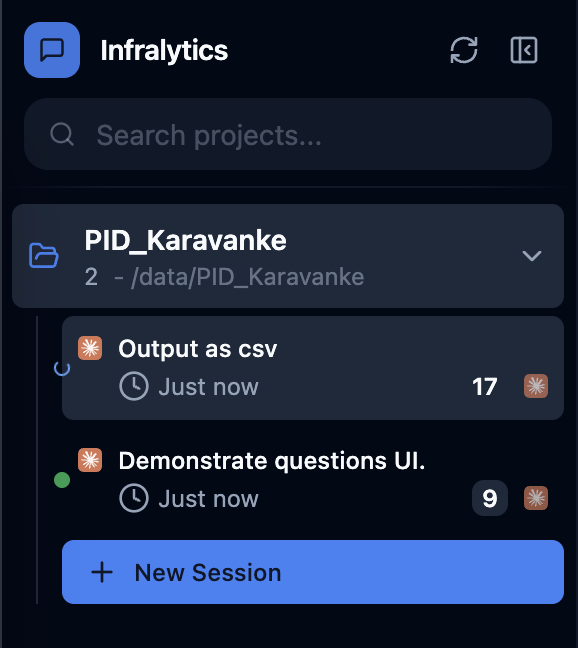
The sidebar shows available projects (data directories) and their sessions. Click + New Session to start a new conversation with the agent.
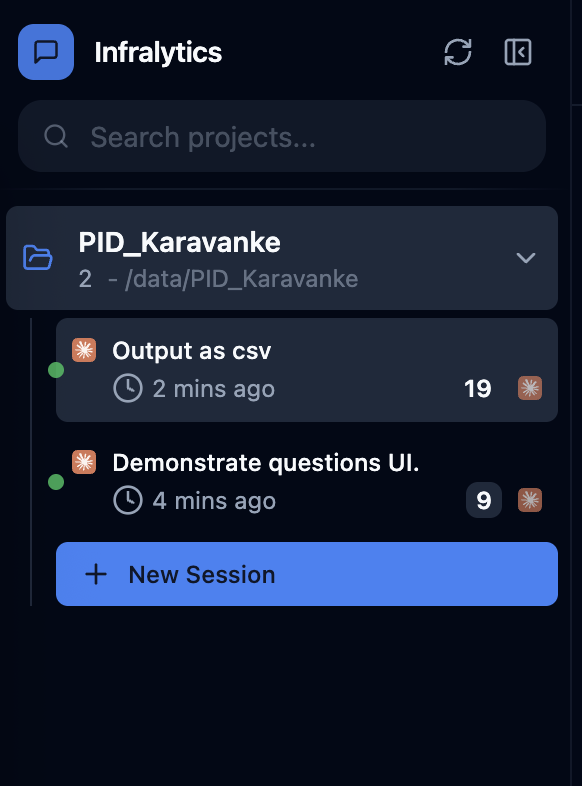
Each session displays:
- Session name (auto-generated from the first message or manually set)
- Time since last activity
- Message count
- Active/idle status indicator (green dot = active)
Conversation History
Previous sessions are listed under the project. Click any session to resume the conversation. The conversation history, including tool outputs and agent responses, is fully preserved.
Chat Interface
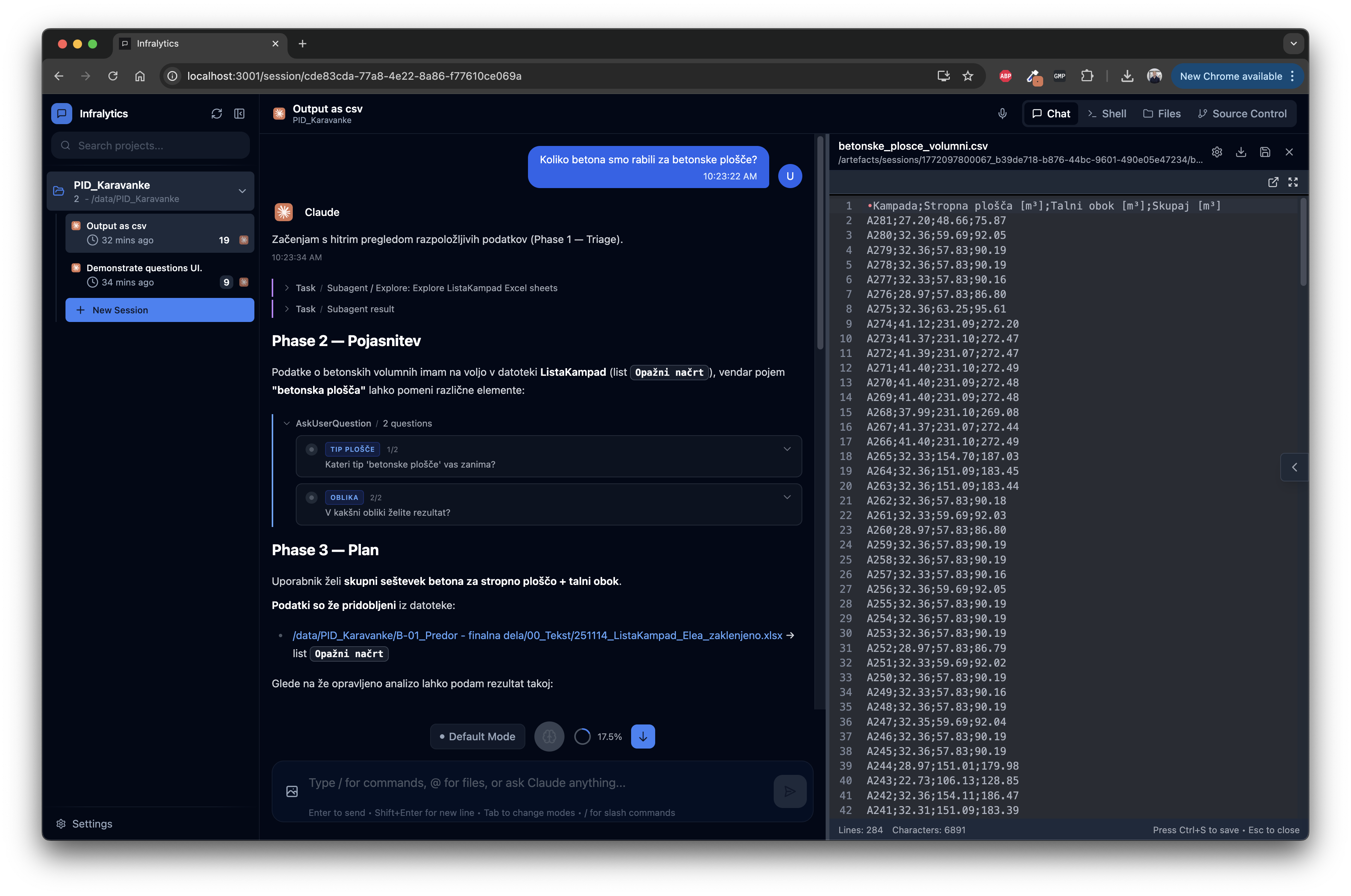
The main area is a chat interface where you interact with the AI agent. Type your question in Slovenian or English and press Enter. The agent responds with structured phases (triage, clarification, plan, execution) and displays tool outputs inline.
Thinking Modes
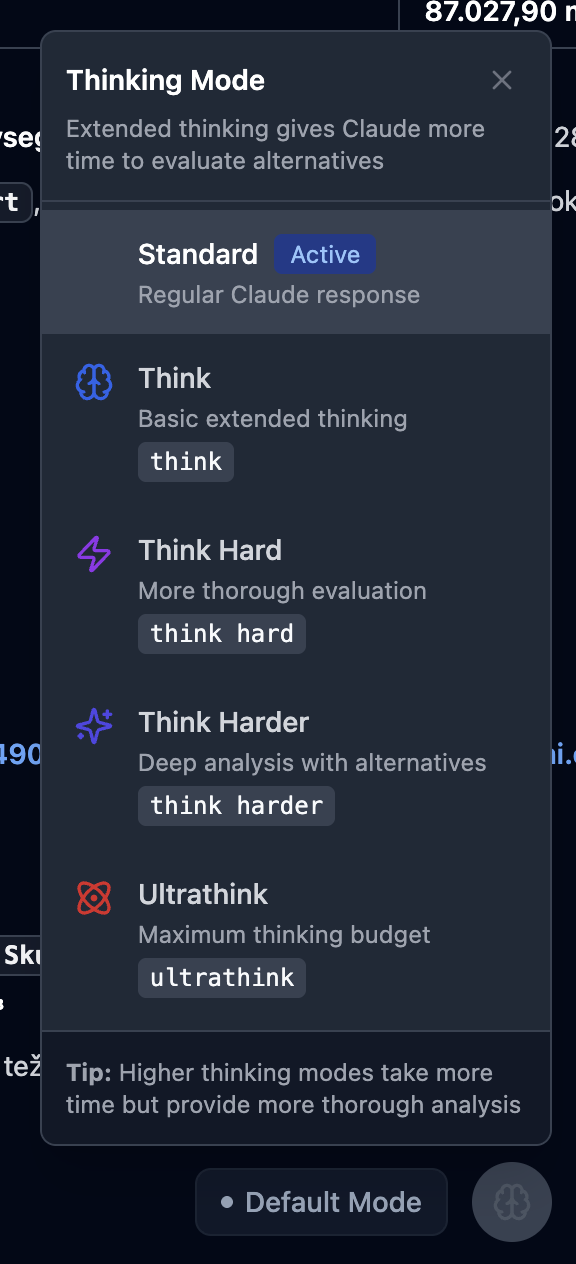
You can control how deeply the agent reasons before responding. Click the thinking mode selector at the bottom of the chat:
| Mode | Description | Use When |
|---|---|---|
| Standard | Regular response | Simple questions, file lookups |
| Think | Basic extended thinking | Multi-step analysis |
| Think Hard | Thorough evaluation | Complex cross-referencing |
| Think Harder | Deep analysis with alternatives | Conflicting data, edge cases |
| Ultrathink | Maximum thinking budget | Critical analysis requiring full reasoning |
TIP
Higher thinking modes take more time but produce more thorough analysis. For routine queries (e.g., "What kampada is at km 18.5?"), Standard mode is sufficient. For complex queries (e.g., "Compare concrete volumes between IFC models and Excel for all KPP kampadas"), use Think Hard or higher.
Interactive Questions
The agent can ask clarifying questions before proceeding with analysis. These appear as interactive selection prompts:
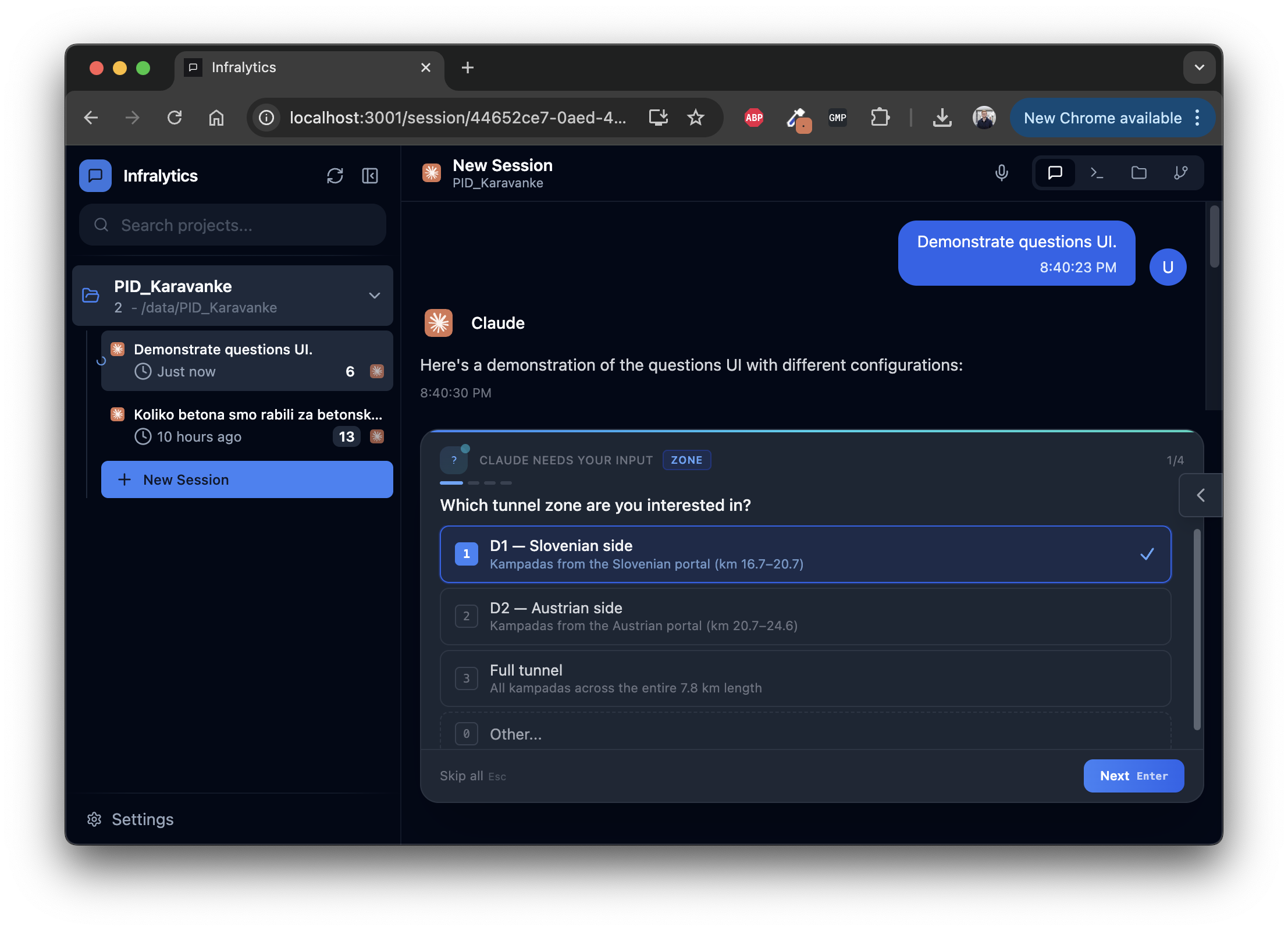
For example, the agent might ask which tunnel zone you're interested in before querying kampada data. Select an option and click Enter to continue.
Plan Mode
The mode toggle at the bottom of the chat switches between Default Mode (agent executes tools directly) and Plan Mode (agent presents a plan for approval before executing).

Shell View
Click the Shell tab in the right panel to see the raw terminal output of the agent's execution. This shows the underlying tool calls, script output, and file operations as they happen in real time.
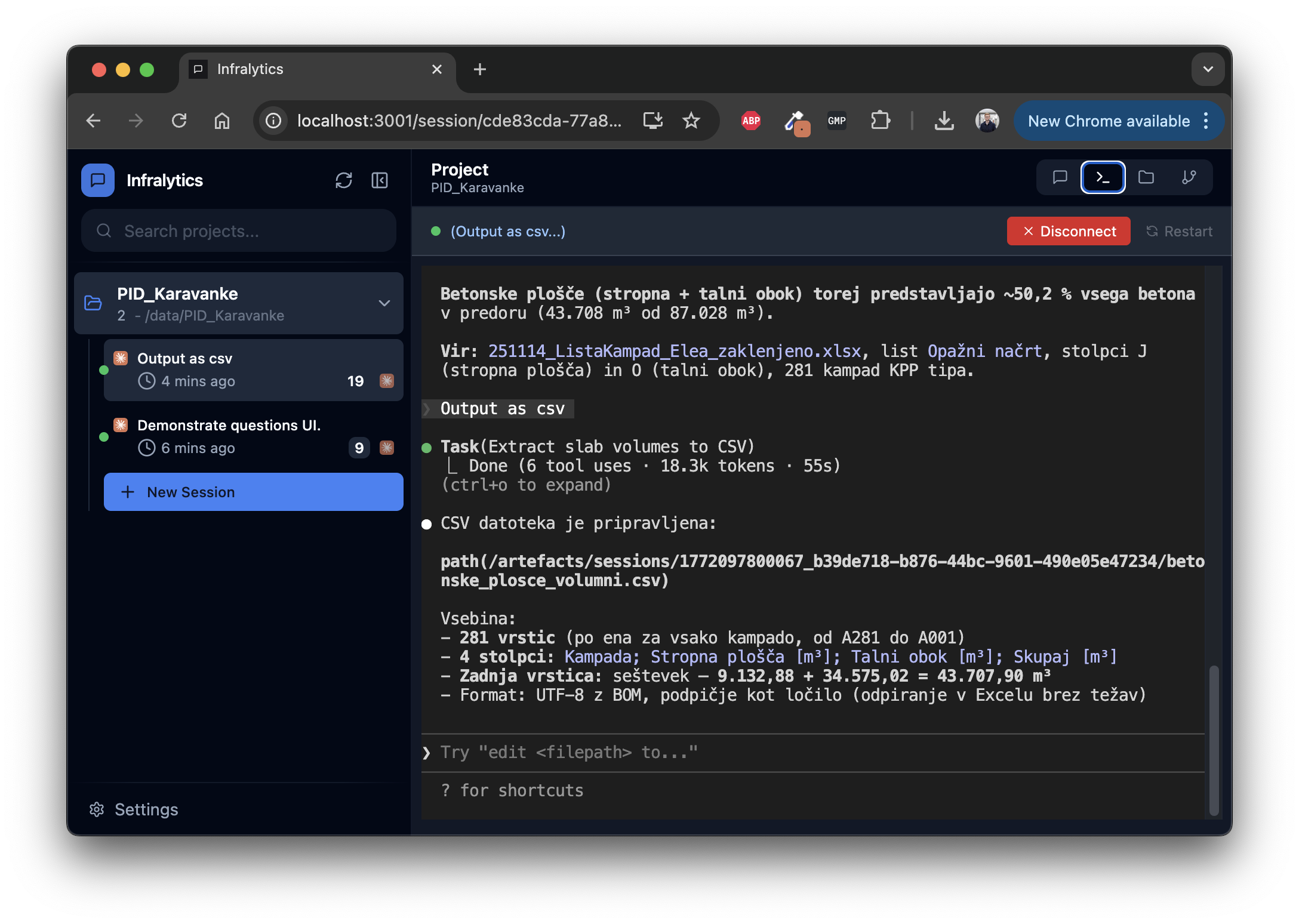
This is useful for advanced users who want to see exactly what commands the agent is running, or to debug unexpected results.
File Browser
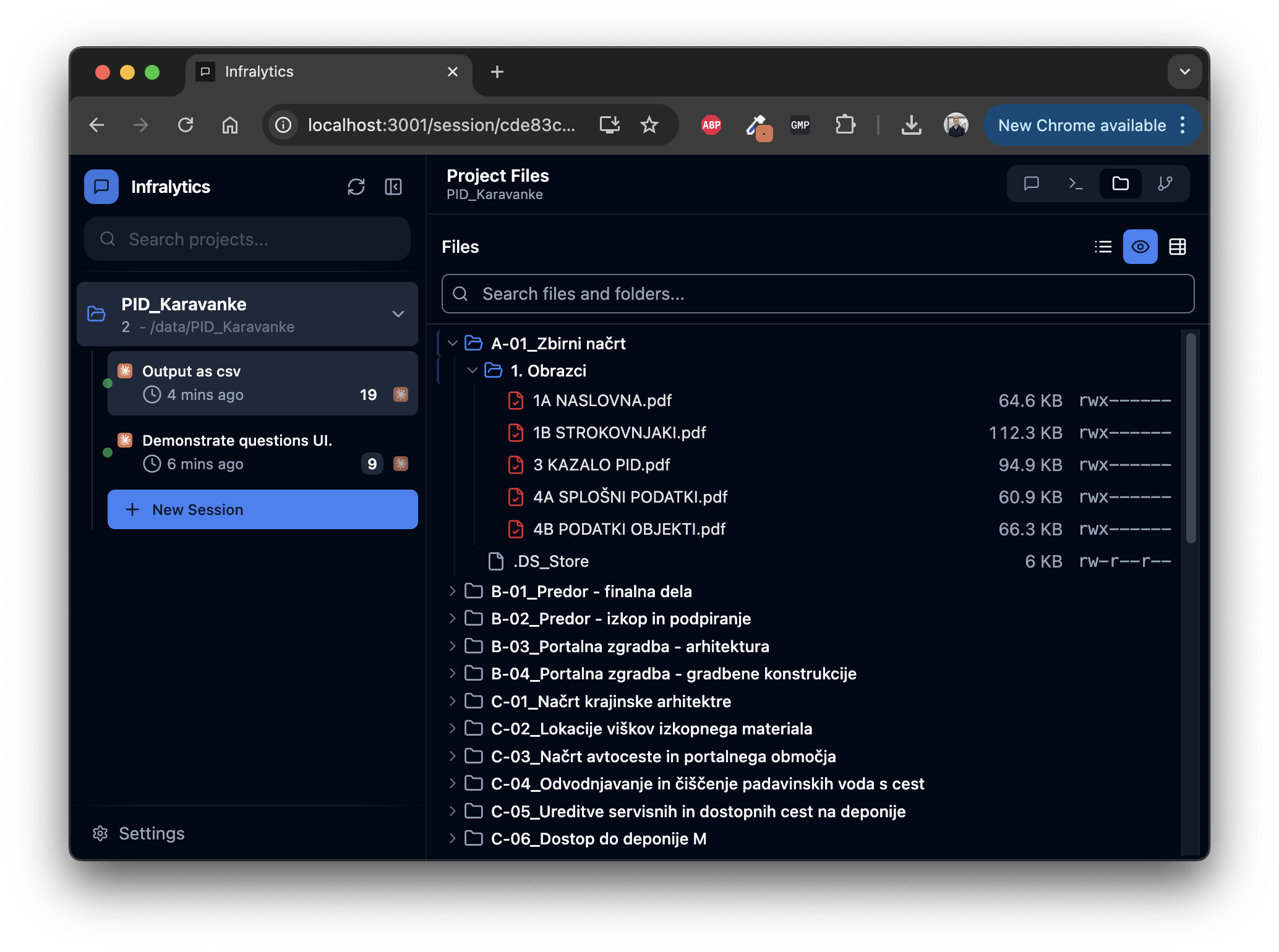
Click the Files tab in the right panel to browse project files. The file explorer shows the directory structure of the mounted data volume (/data).
Viewing Files
Click a text file to preview it in the built-in viewer:
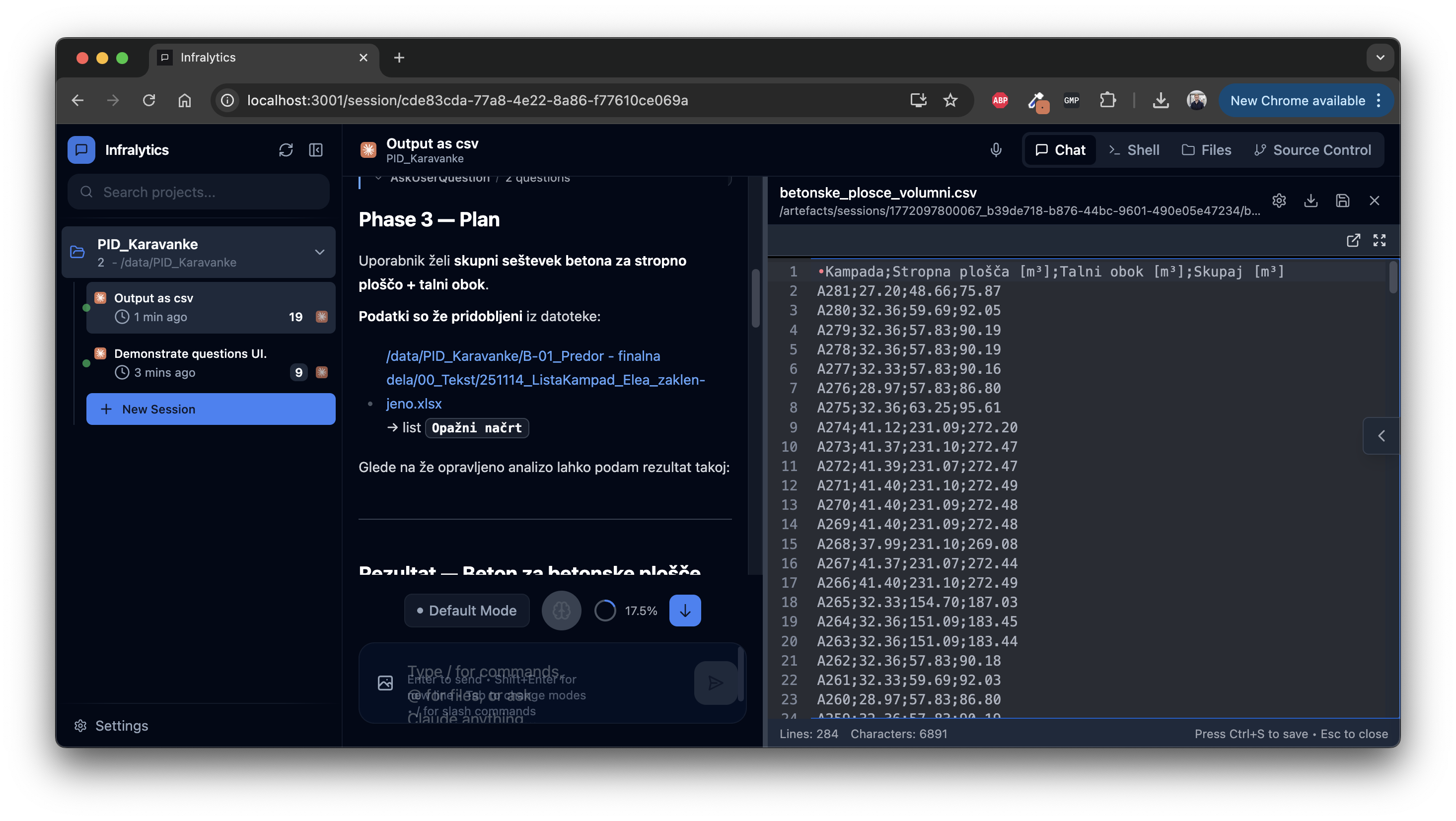
The right pane supports multiple tabs: Chat, Shell, Files, and Source Control.
Downloading Files
Binary files (Excel, IFC, etc.) that cannot be displayed as text show a download button:
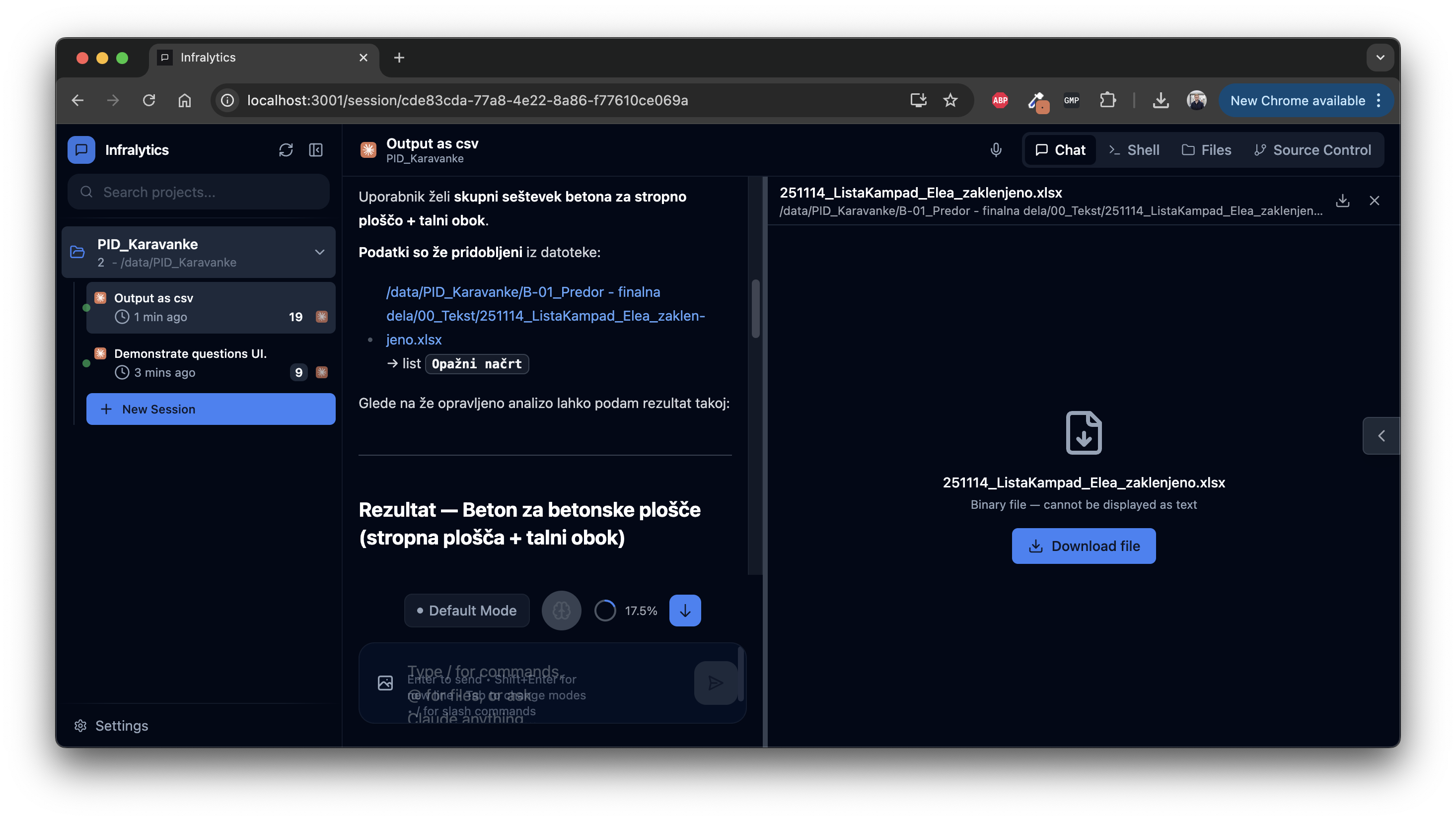
This also applies to artefacts generated by the agent (e.g., CSV exports).
Audio Recording
For test sessions, a built-in audio recording feature captures the discussion between the test user and the testing supervisor. Click the microphone icon to start recording:
Recordings are saved to the artefacts directory and can be automatically transcribed for later analysis. This is used to capture context that isn't reflected in the chat — such as verbal observations, confusion points, and suggestions.
Settings
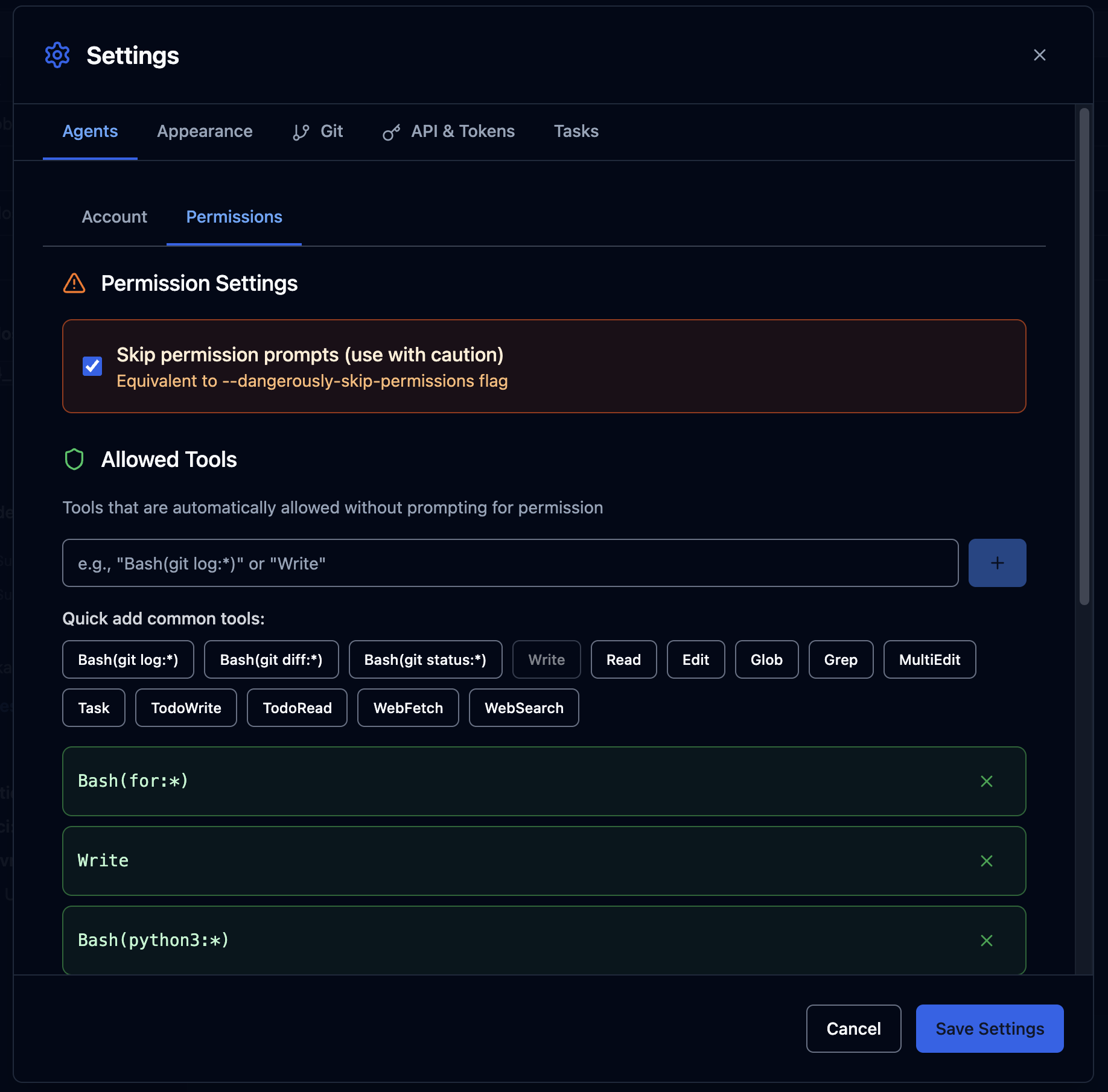
Click Settings in the bottom-left corner to configure:
Permissions
Control which tools the agent can use without prompting for approval. Common presets include shell commands, file operations, and search tools.
Context Window
The context usage indicator shows what percentage of the token budget has been consumed in the current session:

When the context window fills up, start a new session. The agent does not carry over context between sessions.
Tips for Effective Queries
- Be specific — "What is the concrete volume for kampada A271?" works better than "Tell me about A271"
- Specify the data source — "Check the IFC model for..." or "Look in the Excel kampada list for..."
- Ask for cross-validation — "Compare the concrete volumes in the IFC model vs. the Excel table"
- Use Slovenian terms — The agent understands domain terms: stropna plosca, talni obok, notranja obloga, etc.
- Review the plan — When the agent presents a plan, check that it's querying the right files before approving
- Export results — Ask the agent to "output as CSV" or "save a summary" for structured results